Google's native Data Connector
Supports report imports, SOQL queries, basic CRUD, and scheduled refresh for simple pulls.


Spreadsheets have always been part of Salesforce workflows.
For years, that meant Excel—downloaded reports, offline analysis, bulk edits, re-uploads. Even today, many Salesforce teams still rely on Excel to do the real work faster than clicks and forms allow.
85% of sales reps reportedly run their entire book of business from spreadsheets, not their CRM — with only 5% using CRM as their main tool.
LinkedIn (Tech Sales Accelerator)
But as teams became more distributed, workflows shifted.
Excel didn’t disappear.
It evolved.
Google Sheets became the collaborative version of the spreadsheet—real-time sharing, instant visibility, and faster iteration. Naturally, Salesforce data followed.
This guide covers the common ways to connect Salesforce to Google Sheets, why most approaches fall short, and how to maintain a live, bi-directional connection using Valorx Fusion.
Salesforce has more than 150,000 customers and serves 90% of the Fortune 500.
Salesforce Research
Despite improvements in Salesforce UI and reporting, spreadsheet-style workflows persist -for practical reasons.
Salesforce's own State of Sales report (2024) found that reps spend only 30% of their time actually selling. The remaining 70% goes to administrative tasks, data entry, and internal meetings. And separately, 43% of CRM users report using less than half of their CRM's features.
When the CRM doesn't match how teams actually work — reviewing pipelines, making bulk changes, running analyses — they open a spreadsheet. Not because it's better than Salesforce. Because it's faster for the work they need to do right now.
This pattern shows up most often for:
Reps partner most often with sales operations (48%) — more than with other sellers or marketing — and 72% of sellers report needing multiple screens or windows open to coordinate a single sales process.
Salesforce
That's the environment spreadsheets thrive in.
If your team already exports Salesforce data “just to get work done,” this workflow will feel familiar.
Whether teams use Excel or Google Sheets, the breaking point is the same:
The numbers behind this erosion are concrete.
Your CRM has a problem. Here's what it's costing you, as per various Salesforce studies:
Average CRM data accuracy
That means 1 in 5 records your reps touch is wrong
Lost per rep, per day
Chasing down corrections instead of closing deals
Sales professionals who trust their data
The other 65%? They're building spreadsheets
Average annual cost of poor data quality
And that's just the beginning
The math is simple: bad data breaks trust, trust breaks process, and broken process breaks revenue.
By the time the CSV is re-uploaded, a dozen deals may have already changed stage. At that point, Salesforce becomes a system of record—but not a system of action. This is why Salesforce-to-spreadsheet integrations exist in the first place.
Google Sheets didn’t replace Excel because it was more powerful. It replaced it in many workflows because it was collaborative by default. For Salesforce teams, this mattered:
Each sales rep maintains their own "working" pipeline in Google Sheets, tracking:
Sales managers create collaborative forecast sheets where:
Marketing provides lead lists in CSV format, and sales teams:
Account segmentation and territory assignments:
Many reps track their own commission in Google Sheets because:
While Google Sheets is flexible, sales teams lose critical Salesforce capabilities:
That’s why connecting Salesforce with Google Sheets through a bi-directional sync is critical—so teams get spreadsheet-level speed without sacrificing Salesforce data integrity, automation, or reporting.
Four common approaches — and what they're best (and not best) for.
Supports report imports, SOQL queries, basic CRUD, and scheduled refresh for simple pulls.
Fine for a quick export, but data goes stale immediately and versions multiply fast.
Great for record-level triggers (e.g., new lead → add a row), but not built for bulk work.
A purpose-built Google Sheets ↔ Salesforce connector that keeps data live.
Valorx Fusion distinguishes itself from other data connectors by offering a suite of robust features designed to enhance your data integration experience.
Watch how a live Google Sheets ↔ Salesforce connection works in practice with Valorx Fusion — no exports, no re-uploads, no reconciliation.
Here’s why Valorx Fusion is the better choice for connecting Salesforce to Google Sheets:
While other Salesforce connector extension tools offer basic functionality, Valorx Fusion provides a comprehensive, feature-rich solution that sets it apart:
By choosing Valorx Fusion, you leverage the best of both worlds—Salesforce’s powerful CRM capabilities and Google Sheets’ flexible data management tools. This integration not only enhances productivity and collaboration but also ensures that your data remains secure and up-to-date.
What ultimately drives the switch to Valorx is the hidden cost most teams underestimate: post-meeting Salesforce updates.
Pipeline meetings rarely end when the calendar invite does. Once the discussion ends, someone exports data, applies edits in Google Sheets outside Salesforce, reconciles comments, and re-uploads changes back into the CRM. That secondary workflow compounds quietly across teams and weeks.
Before workflow
Discussion → spreadsheet edits outside Salesforce → delayed Salesforce accuracy
After workflow
Discussion → live edits synced to Salesforce → immediate Salesforce accuracy
Use the calculator below to quantify the time and fully-loaded cost eliminated when pipeline changes are captured during the meeting instead of after.
Drag the sliders to estimate the impact of doing pipeline updates during the meeting instead of after.
Hours saved / week
—
Follow-up updates eliminated
Hours saved / year
—
52 weeks
💰 Annual cost saved
—
Annual hours saved × hourly cost
Valorx Fusion was built for teams that operate in Google Sheets but need Salesforce to remain the source of truth. Fusion connects Salesforce directly to Google Sheets, allowing teams to pull live data, work with it like any spreadsheet, make structured bulk updates, and sync changes back in real time.
The workflow feels like Google Sheets. The data behaves like Salesforce.
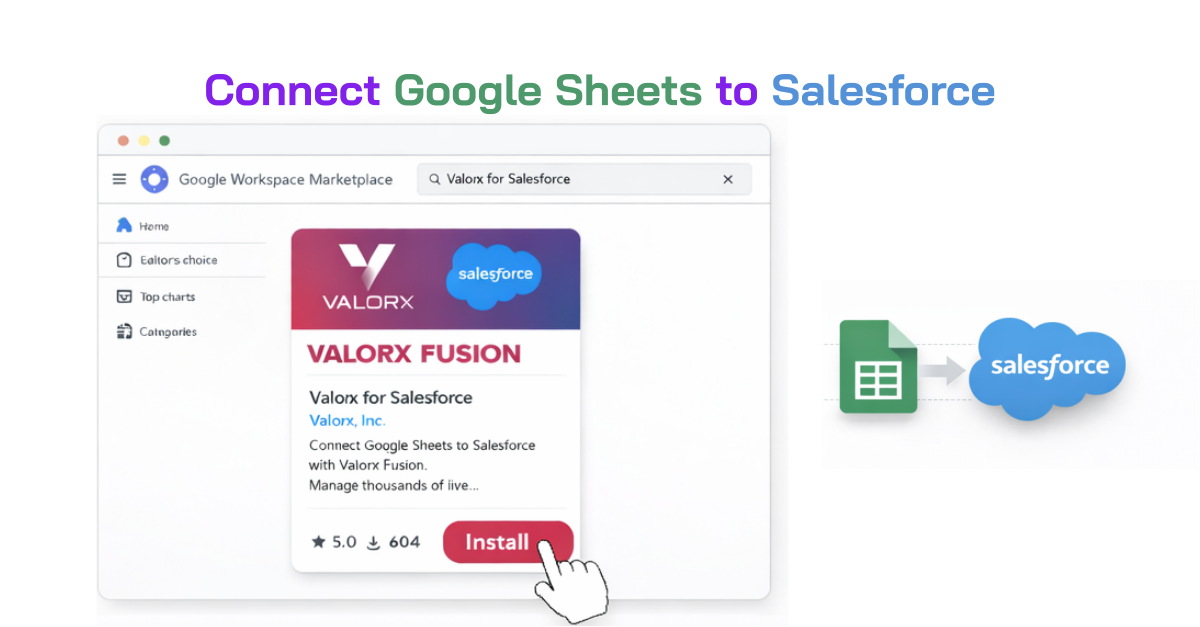
Or install from Google Sheets:
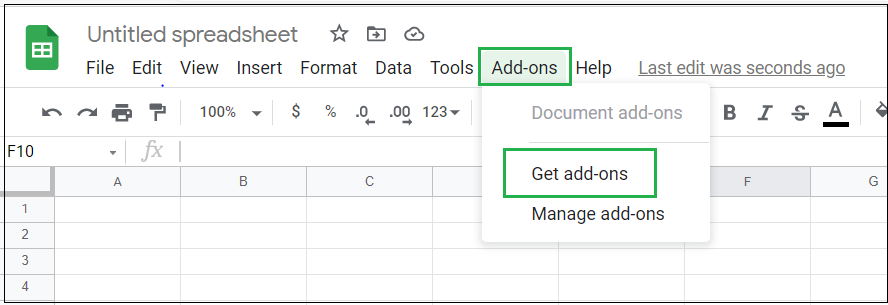
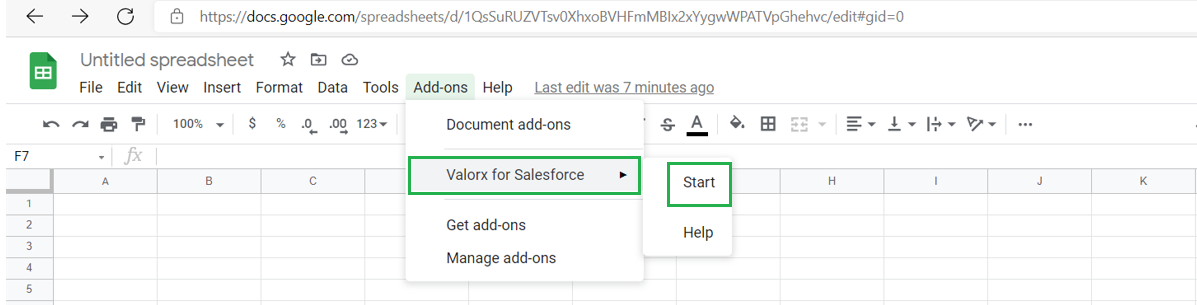
Once connected, Salesforce data becomes live inside Google Sheets. You'll see the Fusion sidebar with options to query objects, pull reports, and configure sync settings.
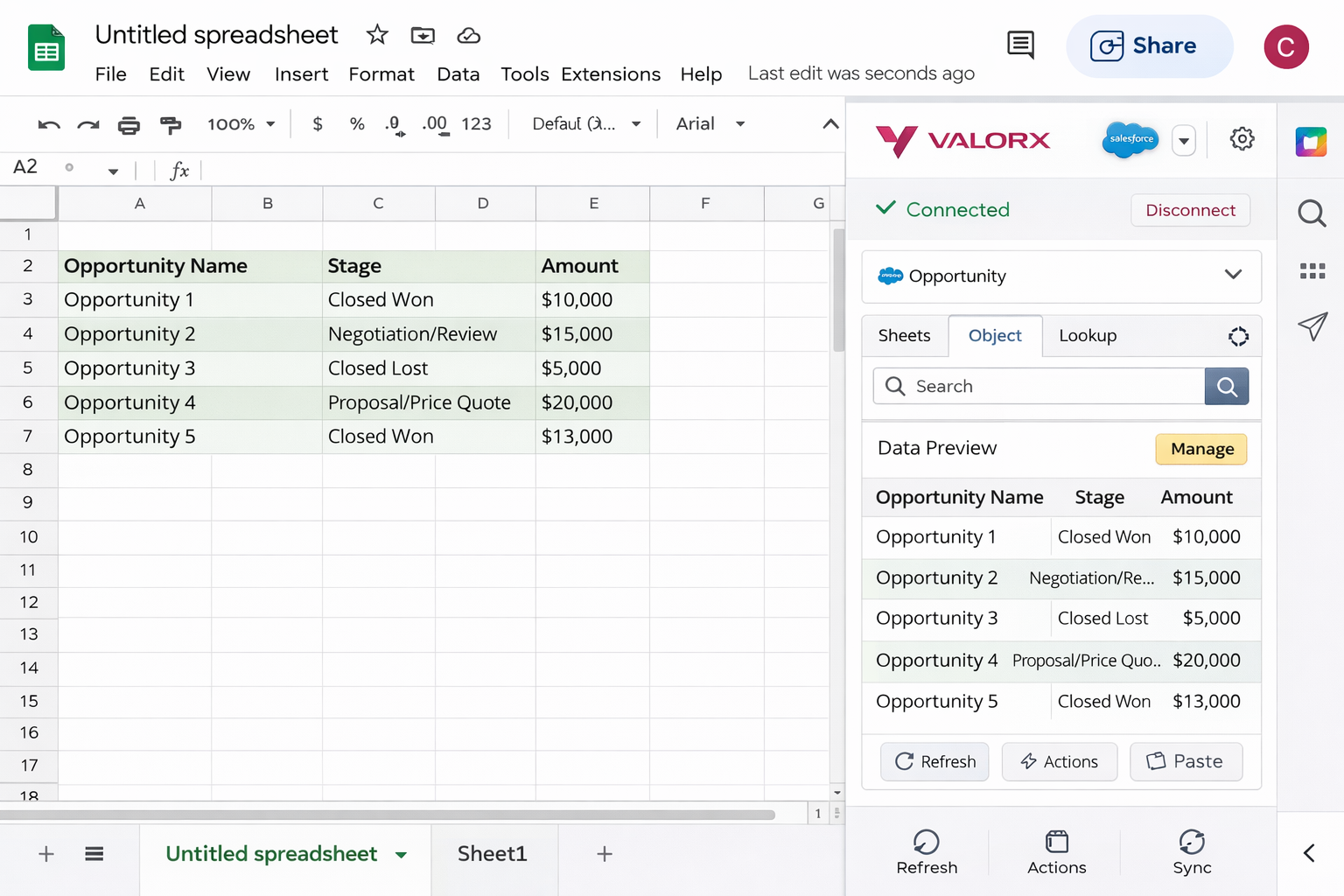
That's it. No code, no SOQL, no API configuration. Your Salesforce data is now live in Google Sheets.
See Fusion in action
Once teams stop exporting and start working on live data, behaviors change. Bulk updates happen with confidence, errors drop because re-uploads disappear, collaboration improves because everyone sees the same data, and Salesforce adoption increases — without enforcement.
This matters more than it might seem. Research shows that CRM adoption can shorten sales cycles by 8–14% and improve forecast accuracy by up to 42%. The problem is that adoption often breaks down at the data entry layer — 32% of reps cite manual data entry as the primary barrier to CRM usage. When teams can work in their preferred spreadsheet and have changes sync back automatically, the adoption friction disappears.
See Valorx in a live spreadsheet workflow
As teams grow more comfortable with spreadsheet-style interaction, a natural next question appears:
“Can we do this inside Salesforce itself?”
That’s where Valorx Wave fits—naturally, not abruptly.
Wave brings the same grid-based, spreadsheet-style experience directly into Salesforce, removing the need to step outside the platform at all.
For some teams, spreadsheets are a stepping stone. Once processes stabilize, questions shift from “How do we work faster?” to “How do we keep this entirely inside Salesforce?”
That’s where teams like Swoop adopted Valorx Wave — not to change how users think, but to remove the need to leave Salesforce once speed and structure mattered more than collaboration outside the CRM.
Swoop originally connected Salesforce to Google Sheets the traditional way — export, edit, re-upload, repeat. It worked technically, but adoption suffered.
In 3 weeks, they flipped the model by bringing the Google Sheets experience inside Salesforce using Valorx Wave:
This isn’t a fork in strategy.
It’s a progression in how live your Salesforce data is.
Same way of working. Increasing levels of data continuity.
Some teams will always prefer Google Sheets for collaboration.
Others want everything contained within Salesforce.
What matters is continuity—not forcing teams to abandon the way they work.
Many teams use both — Fusion for analysis and collaboration in spreadsheets, Wave for operational data management inside Salesforce.
If your team collaborates in Google Sheets, Fusion keeps Salesforce data live while they work. If your team prefers Excel, Fusion supports that too. If your team wants spreadsheet speed inside Salesforce, Wave makes that possible.
Watch a live Salesforce-to-Google Sheets workflow
Yes. There are several ways to connect Salesforce to Google Sheets, including Google's native Salesforce Data Connector, third-party tools like Valorx Fusion, and custom API integrations. Valorx Fusion provides a live, bi-directional connection that keeps Google Sheets and Salesforce in sync without manual exports or re-uploads.
It depends on your needs. For basic one-way data pulls, Google's free native connector works. For live, bi-directional sync — especially when making bulk updates that need to write back to Salesforce — Valorx Fusion is purpose-built for that workflow.
Yes. Fusion supports both pulling Salesforce data into Google Sheets and pushing changes from Sheets back to Salesforce. Changes sync in real time, so Salesforce always reflects the latest edits made in your spreadsheet.
Yes. Because Fusion delivers Salesforce data into native Google Sheets cells, you can use all standard Sheets functions — VLOOKUP, pivot tables, conditional formatting, charts, and custom formulas — on live Salesforce data.
Valorx Fusion authenticates via Salesforce OAuth and respects all existing Salesforce security settings, including profiles, sharing rules, and field-level security. Data is queried live and not stored on intermediate servers.
Google's native connector supports basic imports, SOQL queries, and scheduled refreshes. Fusion goes further with true bi-directional sync, structured bulk editing capabilities, real-time data refresh, and a purpose-built interface for managing large Salesforce datasets in Sheets. Teams that need to edit and push data back to Salesforce — not just read it — typically choose Fusion.
Yes. Valorx Wave provides a spreadsheet-style grid interface embedded directly inside Salesforce Lightning. If your team wants the speed of a spreadsheet without leaving Salesforce, Wave is the complement to Fusion. Learn more about Wave →
Yes. Fusion works with both Salesforce Classic and Lightning.
Yes—that's the point. Fusion supports true bidirectional sync. Edit in Sheets, and those changes write back to Salesforce.
Standard objects (Accounts, Contacts, Opportunities, etc.) and custom objects are all supported.
Fusion is built for bulk operations. You can work with large datasets—the kind that would be painful to manage record-by-record in Salesforce.
Fusion handles this with Salesforce's standard conflict resolution. The most recent save wins, same as in Salesforce itself.