How Adobe consolidated 3 Salesforce orgs into one view — and turned 40 hours of reporting into minutes

THE PROBLEM
Three Salesforce orgs. Zero unified view.
Widely known for their range of content editing software, Adobe has transformed the digital experience for users worldwide. Their innovations empower digital businesses and enable users to unleash their creativity and be more productive.
Behind the scenes, Adobe's revenue teams face a complexity that most organizations never encounter: multiple Salesforce organizations running simultaneously. Different business units, different regions, different product lines — each with its own Salesforce org, its own data, its own processes.
That created a problem Salesforce's standard UI was never designed to solve.
Revenue teams needed to compare, update, and analyze data across all three orgs. They needed integrated reports that spanned organizational boundaries. They needed to score deals across thousands of accounts and see the full picture — not three separate slices of it.
Salesforce's standard UI doesn't display data across multiple organizations simultaneously. There's no native way to pull records from Org A, Org B, and Org C into a single view, compare them side by side, and push updates back.
So teams did what they had to: they exported. They built spreadsheets. They manually assembled cross-org reports — a process that consumed hours of work and produced outputs that were already stale by the time anyone read them.
Generating reports took our revenue teams several hours — and the data was outdated by the time the reports were completed. We needed a way to view and edit data across all our Salesforce organizations in one place.
Revenue Operations, Adobe
WHAT REPORTING ACTUALLY LOOKED LIKE (Before Valorx)
THE FOUR PROBLEMS THAT COMPOUNDED
1. No cross-org visibility
Salesforce's standard UI displays data one org at a time. For a company running three Salesforce organizations, that meant three logins, three sets of reports, three disconnected views of the same business. Leadership couldn't see the unified picture without someone manually stitching it together.
2. Reports were dead on arrival
The manual export-merge-compile process took so long that every report was outdated before it was delivered. Decisions that should have been informed by real-time data were based on snapshots that were days old.
3. No custom data models
Adobe needed to organize and display data in ways that Salesforce's native reporting and Schema Builder couldn't support. They needed custom views that combined objects, fields, and relationships across orgs — and Salesforce's native tools had hard limitations on how far they could go.
4. No bulk editing capability
When analysts identified data issues during the compilation process, they couldn't fix them in bulk. Salesforce's standard UI forced one-record-at-a-time updates — turning a 10-minute correction into an hour of clicking.
We couldn't create the custom data models we needed. We couldn't view data in a single, accessible view. And we couldn't edit data in bulk. Every workaround we tried just added more manual steps.
Data Administration, Adobe
THE DECISION
Adobe evaluated Salesforce's native reporting enhancements, custom Lightning development, and third-party BI tools. Each addressed one dimension of the problem — but none solved the core issue: teams needed to view, edit, and analyze data across multiple Salesforce orgs in a single workspace, and sync changes back instantly.
During the Fusion proof-of-concept, an Adobe analyst connected to all three Salesforce organizations, pulled account and opportunity data into a single Excel workbook, cross-referenced deal scores across thousands of accounts, made bulk updates — and synced everything back to Salesforce with a single click.
A process that previously took 40+ hours was completed in minutes.
The same analyst could now build custom views combining any objects and fields across orgs — without waiting for a developer to build a custom solution and without Schema Builder's limitations.
With Valorx, our users were able to easily input Salesforce data into Excel, edit data, create reports, and view data in one spreadsheet — and sync all changes back to Salesforce with a click of a button.
Revenue Operations, Adobe
THE SOLUTION
Valorx Fusion connects Excel directly to Salesforce — including multiple Salesforce organizations simultaneously. Teams get the full power of Excel for analysis and editing, with real-time bidirectional sync to every connected org. No middleware. No manual exports. No stale data.
Key capabilities
Unify multiple Salesforce orgs in one view
Connect to multiple Salesforce organizations from a single Excel workbook. View accounts, opportunities, and custom objects across orgs side by side — with no manual exports or data merging required.
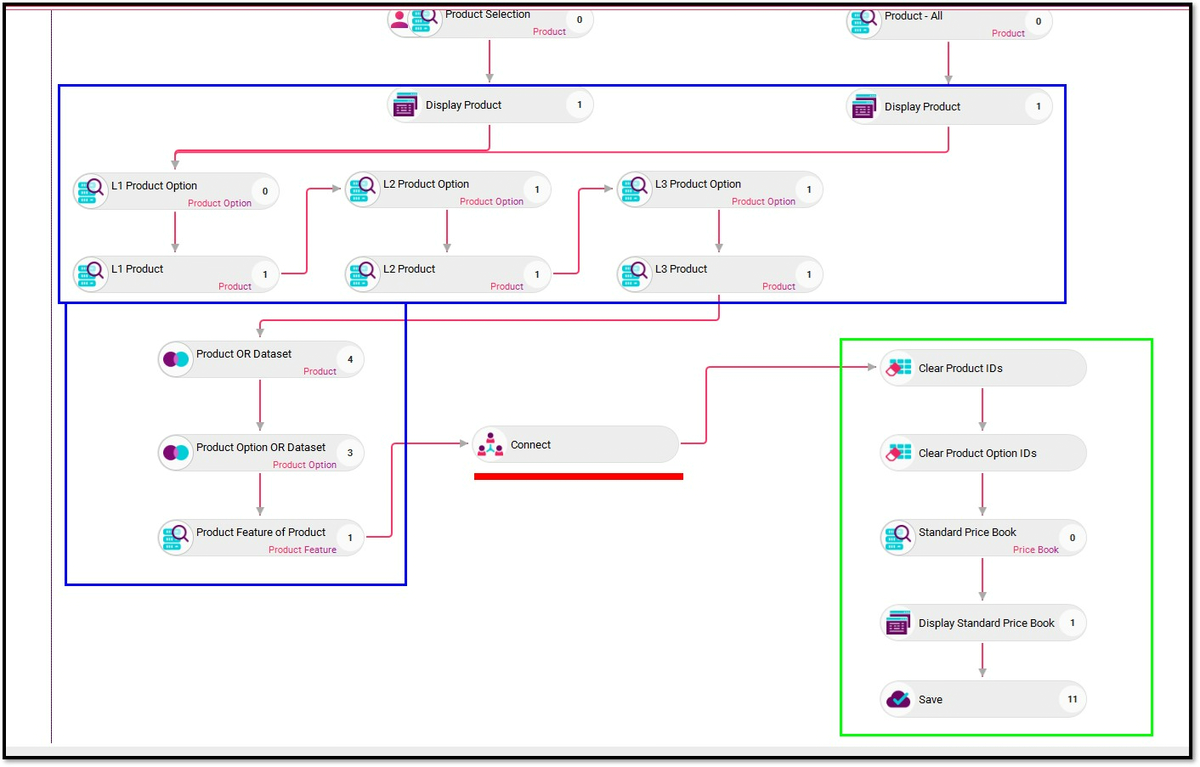
Build cross-org reports in minutes, not days
Create custom reports that span organizational boundaries. Compare performance across business units, regions, or product lines — all in a familiar Excel interface, all powered by live Salesforce data.
Edit in bulk, sync in one click
Select hundreds of records across any org and update them simultaneously. Correct data issues, adjust scores, update fields — and push every change back to Salesforce in a single action. No more one-record-at-a-time clicking.

Build the data models Salesforce can't
Configure custom views combining any objects, fields, and relationships — beyond what Schema Builder or native reporting supports. If you can see it in a spreadsheet, you can build it in Fusion.
Data stays in Salesforce. Always.
Every edit syncs bidirectionally to Salesforce in real time. No exports sitting on desktops. No version conflicts. No stale snapshots. Salesforce validation rules, security, and permissions remain fully enforced.
THE RESULT
WHAT THE TEAM SAYS
We were able to view three Salesforce organizations in a single spreadsheet, which eased the process of comparing and analyzing data across our entire business.
Instead of spending hours configuring data, users were able to assemble reports in minutes. The time we got back went straight into analysis and decision-making.
SEAMLESS INTEGRATION
Fusion required zero changes to Adobe's existing Salesforce architecture:
- Multiple Salesforce Orgs: All three organizations connected simultaneously. No data migration, no org consolidation required.
- Custom Objects & Fields: All standard and custom objects, fields, and relationships fully supported across every org.
- Security & Permissions: Salesforce sharing rules, field-level security, and profile permissions enforced per-org within Fusion.
- Existing Automation: Workflows, validation rules, and approval processes continued to function. Fusion works within Salesforce governance — not around it.
- Downstream Systems: Reporting tools, dashboards, and downstream integrations benefited from cleaner, more current data flowing through Salesforce.
Adobe configured 20+ applications across their Salesforce orgs — all without custom development.
KEY TAKEAWAYS
1. Multi-org complexity demands a unified view. When your business runs on multiple Salesforce organizations, native tools can't bridge the gap. You need a single workspace that spans all of them.
2. Stale reports cost more than time. Every hour spent manually compiling data is an hour of analysis lost — and every decision made on outdated data carries risk.
3. Bulk editing isn't optional at scale. When you're managing thousands of accounts across multiple orgs, one-record-at-a-time updates aren't a minor inconvenience—they're a bottleneck.
4. Give teams the tools they already know. Adobe's teams didn't need a new interface. They needed Excel — connected to Salesforce, syncing in real time, working across every org.
Choose the workflow you need:
Try Wave in browser Extension

Try Wave in Salesforce

Try Fusion In Excel
